
Category: Technology
BREAKING: Armageddon has Begun
The Roads to Mattis, Iran, Trump, and Hormuz.
Snips And Bits
(Just under an hour, so more than a snip or a bit, but it’s not only necessary, it’s fascinating. Or else I’m just that big a geek.)
How Angela Davis Predicted The Modern Face Of Fascism in 1971
Fifty years prior to rumors of fascism circling President Trump, activist and philosopher Angela Davis made a spooky prediction about dictatorship in the U.S.
President Donald Trump’s administration continues to stand on shaky ground amid bombshell resignations and rumors of a dictatorship brewing. But in the midst of these unprecedented times, one Black political activist’s warning could offer a shocking reality for Americans… even if the message came 55 years earlier.
Trump’s return to the White House was met with fierce criticism from leaders like former Vice President Kamala Harris and his own former chief of staff, John Kelly, who explicitly declared that Trump fits “into the general definition of fascist.” But while terms like “fascist” and “dictator” have found a comfortable place in American politics today, activists like Angela Davis were among the loudest opponents of fascism nearly six decades ago.
By the 1970s, the Cold War against the Soviet Union revamped fears of a possible fascist regime in the States– notably from many Black Panthers. While awaiting trial for murder, Davis spoke with filmmaker Peter Davis about the likelihood that America would be ruled by a dictator.
“We are closer to fascism than we’ve ever been before,” Davis said from a California prison in 1971. But while the political activist stopped short of declaring fascism had officially made its mark in the U.S. then, her scary prediction has arguably taken a new light in 2026. (SNIP-click the title to read the rest; it’s not at all long)
This Is Pertinent To Our Interests
Google Has a Secret Reference Desk. Here’s How to Use It.
40 Google features to find exactly what you need, the alternative search engines that do things Google won’t, and the reference desk framework underneath all of it.
Most of us search Google the same way we always have: type a few words, scroll, click something that looks close enough, and hope. For a while, that worked. Google handed us a list of links and let us take it from there.
What’s happening now is something different. A 2024 study by SparkToro found that nearly 60% of Google searches end without anyone clicking through to a website, and the trend has accelerated since. By February 2026, Ahrefs found that queries triggering AI Overviews now see a 58% reduction in clicks. Google has been systematically inserting itself between you and the original source, answering questions with AI-generated summaries before you ever reach the page those answers came from. The results you do see are filtered through an algorithm that weighs your search history, your location, and the billions of dollars advertisers have spent to appear for particular queries. Two people searching identical phrases on the same day can get meaningfully different results without either of them knowing it. And because Google controls roughly 90% of the world’s search traffic, most people have no frame of reference for what a less mediated search experience would even look like.
The search bar replaced the reference desk without replacing the skills behind it: knowing how to ask a question precisely, understanding how information is organized and who funds it, knowing the difference between a primary source and a summary of one. The assumption was that the technology made all of that unnecessary, which suited Google; a user who can’t navigate information independently is a user who keeps coming back to be guided.
The search bar you already have is more capable than that arrangement requires you to know. With the right syntax, it becomes a precision instrument: narrow by domain, by date, by file type, by exact phrase. We can pull up archived pages, surface open file directories, and even find what people said in forums instead of what brands want us to find. None of it requires a new tool or a paid account. The capability has been there the whole time.
When You’re Not Getting What You Asked For
Google is constantly interpreting you. It swaps in synonyms, personalizes results based on your history, and decides what you probably meant rather than returning what you typed. Most of the time that interpretation is invisible. These tools are how you override it.
site:
limits your search to a single website. Try: site:nytimes.com climate to search only the Times, or site:gov vaccine to pull results exclusively from government domains. It works as a better version of a website’s own search function (most built-in site search is mediocre at best), as a trust filter when you only want results from a specific domain type, and as a research shortcut when you already know which publication or institution you want to pull from. You can also run it in reverse: electric vehicles -site:tesla.com returns coverage that isn’t from Tesla’s own pages.
Number ranges
let you set hard boundaries on any numerical search. Put two periods between two numbers with no spaces: laptop $500..$800 returns results mentioning prices in that range. The same syntax works for years (civil rights legislation 1964..1968) or any other measurement. It eliminates a significant amount of irrelevant results when you’re comparison shopping or trying to find coverage from a specific period.
Verbatim mode
is the most powerful feature most people have never used. After any search, click Tools (just below the search bar), then the “All Results” dropdown, then select “Verbatim.”
Google stops paraphrasing you entirely and returns results for exactly what you typed, stripped of personalization and synonym-swapping. It’s one of the most useful things Google has buried several clicks deep, and the fact that it takes three clicks to reach says something about how much Google wants you to find it.
Quotation marks
work the same way at the phrase level. Try: “the medium is the message”. Wrapping a phrase in quotation marks forces Google to find pages where those exact words appear in that exact order. Unquoted words are treated as suggestions; quoted phrases are treated as requirements. Use this to verify whether a quote is real and trace it to its actual source, to find a specific statistic rather than everything that implies it, or to track down a title you half-remember. It’s also the mechanism behind one of the most useful social search techniques covered below.
The minus sign
removes a word from your results entirely. Put it directly before the word with no space: jaguar -car returns the animal, mercury -planet returns the element or the musician depending on your other terms. Precise, effective, and useful any time a word you’re searching carries more than one meaning.
AROUND(#)
is an undocumented proximity operator that tells Google how many words apart your two search terms can be. Try: climate AROUND(3) policy. The intent is that only pages where those terms appear in genuine proximity show up, rather than a page that mentions “climate” in the introduction and “policy” ten paragraphs later. Google has never officially documented this operator and its behavior is inconsistent, but when it works, it operates closer to how academic databases have functioned for decades. Worth testing, but not something to rely on the way you would a documented operator.
When You Need the Real Source, Not Just a Summary
The difference between finding a blog post about a study and finding the study itself isn’t trivial, and the gap between them is larger than most people expect.
filetype:
returns only a specific kind of file. filetype:pdf remote work productivity returns only PDFs. Swap pdf for ppt to find slide decks, or doc for Word documents. Most research reports, government documents, academic papers, and white papers exist as PDFs and don’t rank highly in regular search results because they weren’t built for traffic. Filetype search gets you past that.
intitle: “index of”
surfaces something most people don’t know exists: open file directories on the internet. Try: intitle: “index of” /pdf “media literacy”
These are servers running with directory listing enabled, a default setting in Apache that displays all files in a directory when no index page exists. Most administrators never turned it off. The result is publicly accessible file systems, packed with documents, datasets, and files that don’t appear in regular search results.
before: and after:
set a date boundary on your results. mental health social media research after:2023 filters out everything published before that year. Use before: to find what was known or written at a particular point in time, useful for confirming a source predates an event or for tracing how a conversation has shifted over time. Combine them with site: for a targeted archive search: site:theatlantic.com AI after:2023 pulls everything The Atlantic has published on the subject in the past two years. This kind of search used to require a library database subscription.
intitle: and inurl:
let you filter by the structure of a page rather than just its content. intitle:”media literacy” returns only pages where that phrase appears in the actual title, not just mentioned once in passing. inurl:gov intitle:”AI policy” finds government pages where AI policy is the stated subject. Combined, they’re considerably more precise than keyword searching alone.
When You Want Real Human Opinions, Not Sponsored Content
SEO has made the first page of Google results increasingly dominated by content written to rank rather than to inform. These techniques route around it.
“can anyone recommend”
exploits a quirk in how people write when they’re asking for help without a commercial motive. Try: “can anyone recommend” noise-canceling headphones under $100. Because the phrase is in quotation marks, Google surfaces only pages where those exact words appear, which means forum threads, community posts, and real conversations where people asked the same question you’re asking. Instead of a sponsored listicle, you get someone’s firsthand experience choosing between two specific products. Swap in “does anyone know a good” or “what’s the best” for variations on the same trick.
@ before a word
surfaces social tags and handles in your results. Try: @reddit home espresso machine. Google officially describes this as a tool for finding social tags, so pairing it with a platform name like @reddit or @twitter alongside your topic pulls community discussions toward the top of your results. It doesn’t filter exclusively to those platforms, but it shifts the result set in that direction. Combine it with the quotation mark technique when you want to narrow things further.
The omitted results link
is easy to miss. When Google adds a note at the bottom of a results page saying some results were hidden because they’re too similar to others, there’s a small link to include them anyway. The results Google omits tend to be less trafficked and less search-optimized, which frequently means they’re more substantive and written for readers rather than algorithms. When doing real research rather than a quick lookup, that’s exactly where to look.
When You Need to Go Deeper
The asterisk *
works as a wildcard for any missing word or phrase. Try: “the * of artificial intelligence”. The asterisk stands in for whatever word you can’t remember or want to explore. It’s invaluable for chasing down half-remembered titles and quotes, and it surfaces the full range of ways a phrase gets used across different contexts, which is useful for research that starts from a concept rather than a specific source.
Stacking operators
is where precision compounds. filetype:pdf “information literacy” site:edu before:2015 finds older academic PDFs on the topic from university domains. site:cdc.gov after:2022 -press release pulls recent CDC content with press releases filtered out. The combinations are where the real power lives, and once you’ve internalized a few operators separately, combining them becomes instinctive.
When You Just Need a Fast Answer
Many of Google’s most useful features are things you’d only find by accident, because nothing in the interface tells you they exist. These all work by typing directly into the search bar.
Paste a flight number
like UA 2157 and Google returns the live gate, departure and arrival times, current delay status, and a real-time position tracker without opening an app or an airline website. This works for any major commercial flight. If you’re picking someone up, it’s considerably faster than anything the airline itself offers.
Paste any package tracking number
and Google recognizes the format automatically, whether it’s UPS, FedEx, or USPS, and shows live delivery status directly on the results page. If you’ve been opening carrier websites every time you get a shipping confirmation, you didn’t need to be.
Type run speed test
and Google measures your download and upload speed directly in the browser, without sending you to a third-party site like Speedtest.net. When you’re troubleshooting a slow connection and don’t want to open another tab, it’s the fastest option.
Type [thing] vs. [thing]
like oat milk vs almond milk, Notion vs Obsidian, ibuprofen vs acetaminophen, and Google pulls a side-by-side comparison panel with key differences. It works for supplements, software, ingredients, and medications. It’s not always exhaustive, but it’s faster than opening five tabs to piece together the same information.
A few more that show up less in guides but earn their place:
- define: [word] returns the full dictionary definition plus etymology
- how to pronounce [word] gives you an audio button and phonetic spelling
- [food] calories brings up nutritional information without leaving the search bar
- sunrise [city] or sunset [city] gives you exact times
- time in [city] shows current local time anywhere in the world
- [amount] [currency] to [currency] pulls a live exchange rate
- stock [ticker] shows a live price chart with trading volume
- tip for $[amount] opens a tip calculator you can adjust by percentage and split by number of people
- translate [phrase] to [language] opens a full translation widget with audio pronunciation
- what is my IP returns your IP address immediately
- random number between [X] and [Y] generates one instantly
- color picker opens an interactive color wheel with hex and RGB codes in the results page itself
- timer 25 minutes starts a countdown without leaving Google
- metronome opens a working, adjustable metronome
- bubble level uses your phone’s gyroscope as an actual level
- breathing exercise guides you through a timed breath pattern
- what sound does a [animal] make plays the actual audio
- flip a coin and roll a die both work exactly as described
- Any math equation typed into the search bar is solved immediately
Google also has a full arcade buried in the results page. Searching solitaire, tic-tac-toe, snake, or pac-man opens a playable game directly, no app or third-party site required. Most people have scrolled past these results for years without realizing they were interactive. And two Easter eggs that have been there since at least 2011 and still work: do a barrel roll spins the entire results page 360 degrees, and askew tilts it just enough that people think something is wrong with their screen.
One more that matters for anyone who makes content: after any image search, click Tools > Usage Rights and filter to show only images licensed for reuse. The feature is two clicks deep, most people who need it regularly don’t know it exists, and using an unlicensed image because you didn’t check is a more common mistake than it should be.
What Not to Do
These are the habits that undermine searches most often, and most of them are so ingrained they feel like standard practice.
Don’t treat the AI Overview as the answer.
The AI-generated summary at the top of many Google results is the feature most likely to be wrong and most likely to present that wrongness with complete confidence. Since Google launched AI Overviews in May 2024, documented errors have included advising users to add glue to pizza, recommending that people eat one small rock per day, producing a response claiming Barack Obama was the United States’ first Muslim president (drawn from an academic book title that Google’s system misread as a factual claim), and, in May 2025, insisting across multiple queries that the current year was 2024. These aren’t edge cases. They reflect a structural problem with how the feature works: it synthesizes answers from sources you can’t always see, using a system that can misread context, miss sarcasm, and draw incorrect conclusions from factually correct sources. If the AI Overview touches anything consequential, check the sources beneath it.
Don’t click the first result without checking whether it’s an ad.
Google labels paid results, but the labels have grown smaller and less visually distinct over time. The first two or three results on many searches are sponsored placements, meaning companies paid to appear there rather than earning their position organically. A business with a large advertising budget can outrank a more authoritative source on nearly any commercial query. Check for the small “Sponsored” label before assuming what’s at the top is what’s most credible.
Don’t assume your results are the same as anyone else’s.
Google personalizes results based on your search history, location, device, and account data. Two people searching the same phrase can get meaningfully different pages in meaningfully different orders without either of them knowing it. When research matters, Verbatim mode or a private/incognito window removes some of that personalization layer.
Don’t use quotation marks on everything.
Quotation marks are precise when you need an exact phrase, but applying them to every search narrows your results so sharply that you’ll miss pages that would have been directly useful. If you’re not searching for a specific verbatim phrase, leave the quotes off.
Don’t add a space after an operator.
Purely mechanical, but it kills the function entirely. site:cdc.gov works; site: cdc.gov does not. The operator and the term have to run together with no space between them.
Don’t just Google it when the stakes are real.
Most people use Google the same way for everything, whether they’re looking for a restaurant or trying to understand a diagnosis, a medication interaction, a contract clause, or a financial decision. That habit works fine for low-stakes questions, but for anything with real consequences, Google’s results, and especially its AI Overviews, are a place to find sources, not a destination. A Guardian investigation in January 2026 found multiple AI-generated health summaries that medical professionals flagged as dangerous, including dietary advice for pancreatic cancer patients that Anna Jewell, director of support, research and influencing at Pancreatic Cancer UK, said could “jeopardize a person’s chances of being well enough to have treatment.” Google is often the fastest way to figure out where to look. Treating it as the place to stop is where the trouble starts.
Beyond Google: You Have Options
Knowing when to use a different tool is part of knowing any tool well. Treating one resource as the default regardless of the question is a habit, and like most habits, it runs below the level of conscious choice.
Google is where most people search, and learning to use it well is worth doing. But Alphabet, Google’s parent company, reported $350 billion in total revenue in 2024, with advertising accounting for more than three-quarters of that, according to the company’s own annual filing. The results Google shows you are shaped by that business model in ways that aren’t always visible. Its algorithm promotes pages built to rank, which isn’t the same as pages built to inform. Its AI summaries synthesize answers from sources you often can’t see, which makes it harder to evaluate whether the underlying information is reliable. And because it personalizes results based on your history, two people searching the same phrase on the same day can land in meaningfully different places. Understanding that context changes what you should reasonably expect from a Google search, and knowing what else is available changes what you do when Google isn’t the right tool for the question.
If the problem is structural — that Google’s incentives and your interests don’t always point in the same direction — then having alternatives isn’t about distrust. It’s about knowing which tool fits the question. These eight work differently, in ways that are worth understanding before you need them.
- Kagi is a paid search engine with no advertising and no sponsored results. Plans start at $5 a month for 300 searches or $10 a month for unlimited. You’re paying directly for the service rather than trading your attention for access, which changes the underlying incentives entirely. Its results tend toward fewer SEO-optimized pages and more original sources, a difference most noticeable when the quality of information matters more than the speed of finding it.
- DuckDuckGo is free, doesn’t track your searches, and supports all the operators covered above. It also has a feature called !bangs: type !w before any search to go straight to Wikipedia, or !scholar for Google Scholar. It turns the search bar into a shortcut launcher for wherever you want to land, without a company logging where that is.
- Brave Search is free and privacy-focused, and unlike most alternatives, it runs its own independent search index rather than licensing results from Google or Bing. Most privacy-focused search engines are Bing with a different coat of paint; Brave is the meaningful exception.
- Startpage is free and returns Google’s actual results without Google’s tracking. It works as a private intermediary, submitting your query to Google anonymously and returning results without storing your IP address, search history, or any identifying data. If you’ve tried the other alternatives and find the results weaker than you want, Startpage resolves that without sending your data to Google directly. One thing worth knowing going in: Startpage is owned by System1, a U.S. advertising company, which it discloses openly and says does not affect its no-tracking policy.
- Perplexity is AI-powered and built for research questions. It gives you a synthesized answer with sources cited directly alongside it, so you can see exactly where the information came from and evaluate it yourself. For questions where you want a starting point with visible sourcing rather than a list of links to sort through, it’s often faster and more transparent than a traditional search.
- Bing is Microsoft’s search engine and the second largest in the world by traffic, which makes it the most overlooked real alternative to Google. It’s ad-supported and tracks your searches, so it doesn’t solve the privacy problem — but it runs an entirely different index, which means different results, and that alone is worth knowing. For image search and video it’s often stronger than Google. It’s also the engine powering Microsoft’s Copilot, which gives you AI-generated answers with sourcing in the same way Perplexity does. If a Google search isn’t surfacing what you need, running the same query on Bing takes ten seconds and frequently produces something Google buried or missed entirely.
- Ecosia is ad-supported and runs on Bing’s index, so the results are comparable to Bing rather than Google. What’s different is what happens to the money: Ecosia is a certified B Corp that directs the majority of its advertising revenue toward reforestation projects and publishes monthly financial reports so you can verify it. It won’t give you stronger results than the alternatives above, but for someone whose searches are already going to generate ad revenue for someone, Ecosia redirects that toward something. It’s a light switch, not a lifestyle change — but it’s a real one.
- Library databases are the option most people forget they already have. A public library card — free in most cities — gives you access to databases like ProQuest, EBSCOhost, and JSTOR that the open web simply cannot replicate. These index academic journals, historical newspapers, court documents, company filings, and primary sources that were never designed for Google to crawl and never will be. If you’ve been hitting paywalls on research that matters, this is how you get past them without paying. Check your library’s website for remote access instructions; most let you log in from home with your card number.
The Skill Nobody Told You You’d Need
There used to be a professional layer between most people and raw information. Librarians, researchers, editors, fact-checkers: people whose entire job was to understand how information was organized, who produced it, what motivated them, and where the gaps were in any given source. You didn’t need to think much about any of that, because someone else already had.
That layer has largely dissolved. Search engines replaced the card catalog, algorithms replaced the reference interview, and AI summaries are now stepping in where a librarian’s judgment about source quality used to sit. What’s been left in place of all that professional mediation is a search bar and the assumption that you’ll figure it out.
The tools above don’t fix that problem, but they change your position within it. Every technique here is a version of the same underlying move: being specific about what you need and deliberate about where to look for it. Most people were never taught to approach search that way, because the assumption has always been that it’s simple enough not to need teaching. But the same move works everywhere information is organized: library catalogs, academic databases, legal repositories, government archives.
Search syntax is just the entry point. What’s underneath it is a way of thinking about how knowledge is structured and who controls access to it — and that transfers to every tool you’ll use after this one.
An Apt Subject For Any Blog
Plus, AI is a subject of current event interest. (Lookin’ at autocorrect programs…) Meanwhile, I got a great deal of nerdy pleasure reading this, and I hope all who read, do as well!
Typos Have Plagued Us for Centuries. Just Ask the Publishers Who Printed the Seventh Commandment as ‘Thou Shalt Commit Adultery’ in 1631
A new exhibition at Yale Library explores the history of typos across five centuries. Visitors will see corrections that were listed inside copies of works by James Joyce, Upton Sinclair and Nicolaus Copernicus
Sonja Anderson – Daily Correspondent
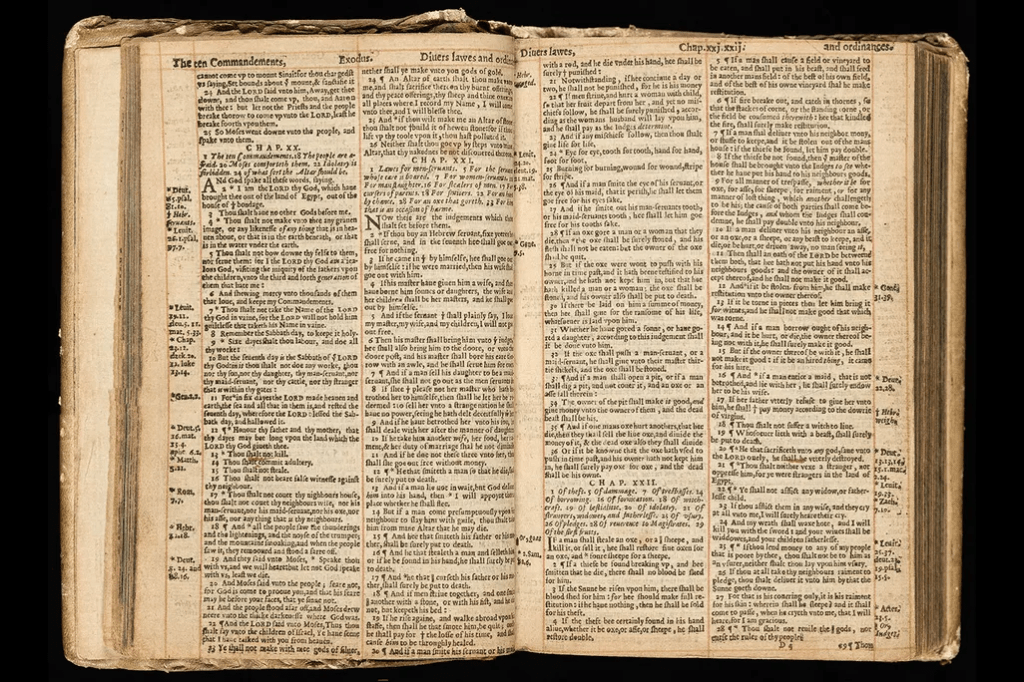
A 1631 copy of the Bible that includes the text “Thou shalt commit adultery.” Beinecke Rare Book and Manuscript Library
James Joyce wrote the manuscript of Ulysses with a steel pen over seven years. By his typists’ accounts, the Irish author’s penmanship was atrocious, and his revisions were overwhelming. When the book was published in 1922, it was full of mistakes. In a letter to his wife, he wrote, “The edition you have is full of printer’s errors.”
The following year, Joyce’s editors compiled a massive list of the book’s errors to be fixed in new editions. Joyce rejected some of the corrections, saying, “These are not misprints but beauties of my style hitherto undreamt of.” Even so, some future printings of the book came with a seven-page errata sheet listing more than 200 mistakes.
Errors like those in Ulysses are the subject of a new exhibition at Yale. “‘Beauties of My Style’: Errata and the Printed Mistake,” which opens at the university’s Sterling Memorial Library on March 30, examines the history of typos across five centuries.
“What we found was that errata sheets were not only spaces for corrections but also sites of humor, legal maneuvering and reinterpretation,” Rachel Churner, a visual studies scholar at the New School and the exhibition’s co-curator, tells Artnet’s Min Chen. “With this exhibition, we wanted to share ways in which even small corrections can reshape meaning and authority.”
According to a statement from the library, “errors committed” lists first appeared in the 15th century. Authors slipped these lists—containing typos, additions and apologies—into the backs of books after publication. The exhibition examines errata lists alongside their companion texts, examining themes of “censorship, misrepresentation, intervention and instability,” per the statement.
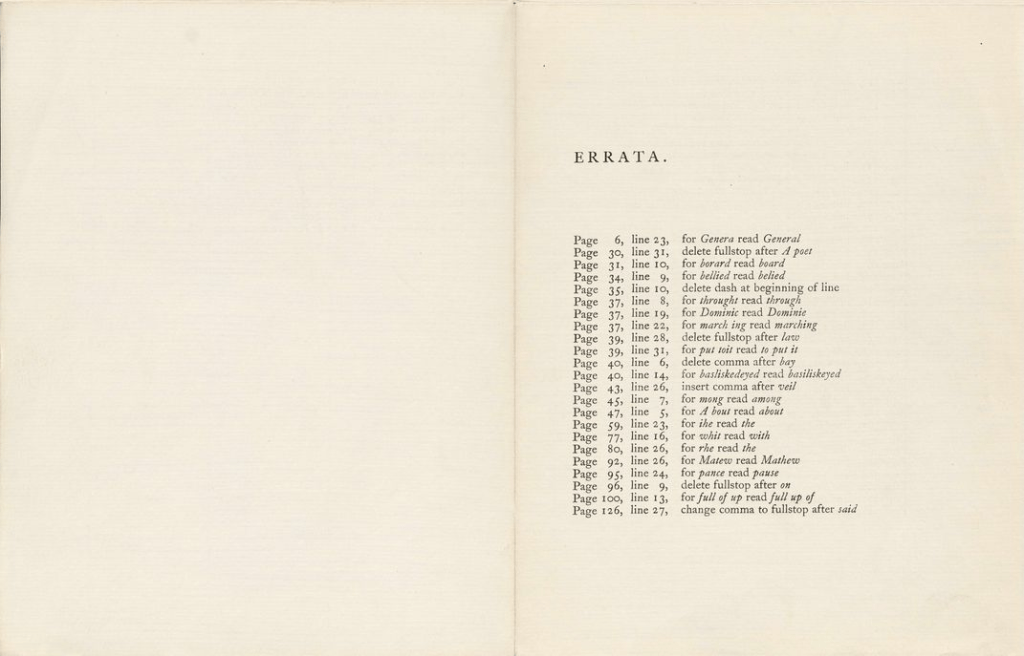
An errata slip from an early printing of James Joyce’s Ulysses Beinecke Rare Book and Manuscript Library
The exhibition spotlights around 30 artifacts from the collection of Yale’s Beinecke Rare Book and Manuscript Library. Items on display include “inaccurate maps, book corrections and religious texts with very grave typographic blunders,” reports Artnet.
In addition to the errata slip from Ulysses, visitors can see several other 20th-century examples, including a self-published copy of Upton Sinclair’s 100 Percent: The Story of a Patriot, in which he “mistakenly identified a founding member of the Communist Party of America as a government agent,” per Fine Books & Collections. Also on view is a fold-out errata from Allen Ginsberg’s 1968 Airplane Dreams. According to the statement, he included the error sheet as a “legal strategy for political resistance.”
Churner and her co-curator Geoff Kaplan, a graphic designer at the Yale School of Art, co-founded the publishing company No Place Press. As they researched errata at the Beinecke, they found “unexpected poetry,” Churner tells Artnet.
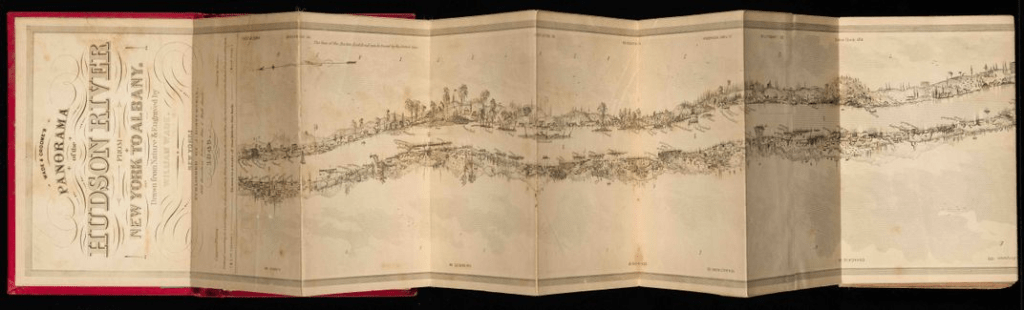
Wade & Croome’s Panorama of the Hudson River From New York to Albany, published in 1846, listed Fishkill Village’s population as 11,000 instead of 800. Beinecke Rare Book and Manuscript Library
The exhibition features an infamous 1631 edition of the Bible, which lists “Thou shalt commit adultery” as the Seventh Commandment. (The omission of the word “not” earned this edition the nickname “the Wicked Bible.”) By the time the mistake was discovered, 1,000 copies had been printed. The British king Charles I reprimanded the publishers, fined them £300 and stripped them of their printing license. In the centuries that followed, rumors circulated speculating that a rival printer had introduced the error. But as Chris Jones, a medieval studies scholar at the University of Canterbury in New Zealand, told the Guardian’s Eva Corlett in 2022, the more likely explanation is that the printers hadn’t wanted to spend money on copy editors.
Nearly all the Wicked Bibles were destroyed, and only about 20 known copies survive. In the copy on view at the Beinecke, someone fixed the error by hand, adding “not” to “Thou shalt commit adultery.”
In some cases, corrections have been used to influence public perception. During the Reformation in the 16th century, books were released describing “mistranslations” of Protestant and Catholic Bibles, “mobilizing the errata well beyond a list of typographic corrections,” Churner tells Artnet.
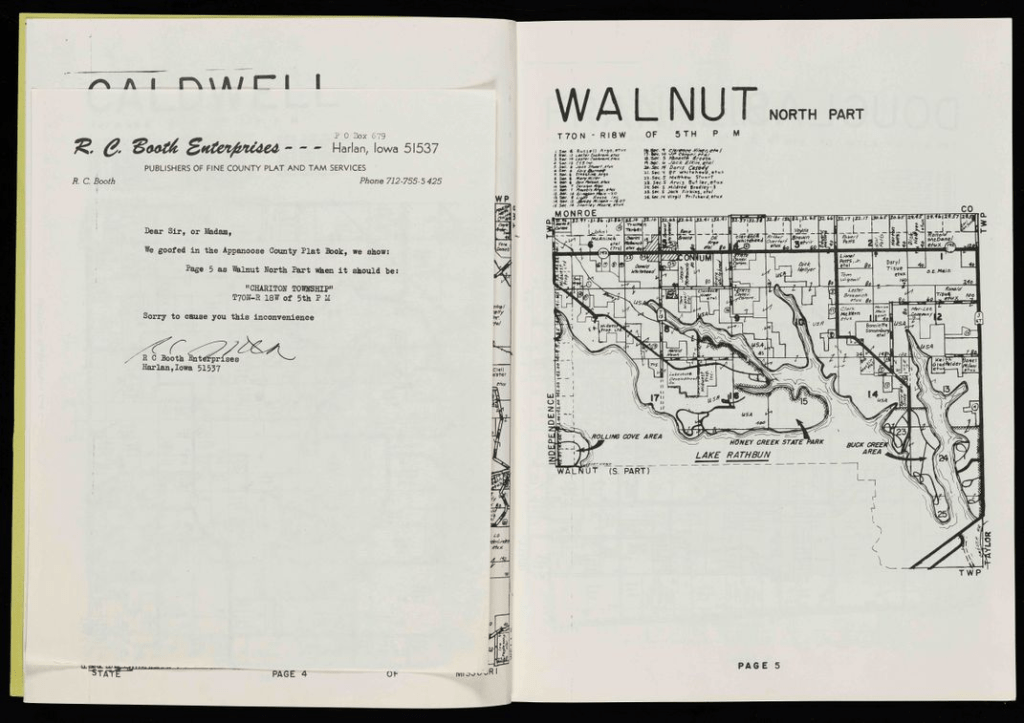
Plat Maps of Appanoose County, Iowa, 1986 Beinecke Rare Book and Manuscript Library
Visitors will also see two copies of On the Revolutions of the Heavenly Spheres (1543) by astronomer Nicolaus Copernicus. They include an anonymous preface that “corrects” the author’s view of heliocentrism—the idea that the Earth revolves around the sun—as a “hypothesis.”
Many other errors, however, are simple mistakes. For example, the exhibition features a 1986 book of Iowa maps with a note correcting a mislabeled township. “Dear Sir, or Madam,” it reads, “We goofed in the Appanoose County Plat Book.”
“‘Beauties of My Style’: Errata and the Printed Mistake” will be on view at Yale University’s Sterling Memorial Library in New Haven, Connecticut, from March 30 to November 29, 2026.
Some serious health news about my husband Ron
Hello all. Ron has been having some issues with memory, thinking, and staying awake. Last year his doctor sent him to a neuro doctor to see if he had dementia or alzhimors. The tests showed no real issues. Ron has been gone for about three months and when he got home a few weeks ago I noticed a huge change in him. He was struggling with remembering anything, he had no energy, and he was falling asleep in the middle of conversations.
So last week he saw his primary care doctor who is a really good doctor who cares. He sent Ron for a heart and artery CT scan. On Monday he saw the doctor for the scan and on tuesday he had the CT scan. Thursday evening Ron’s doctor called my phone. He knew me as I was once his patient and from my working in the ICU. He was trying to contact Ron and apologized for calling me but Ron was not answering his phone and he really needed to talk to him.
Ron has 4 major blockages in and around his heart. One is the left descending artery and is called the widow maker. The others are the arteries that feed the heart. He is at serious risk of a heart attack and death of at least parts of the heart muscle. As it is a serious blockage / narrowing / hardening of the arteries he is not to exert himself or get upset in any way. It took several days to get the medication he needs to help keep the arteries open. Ron read a bunch of stuff on it but failed to send it to me and is talking to his sister so I can’t ask him. When I know more I will share it with you. As I will need to go with him and drive him to appointments posting will be sporadic at best. Hugs
It is not just the oil


Trump and Hegseth do not understand supply chains. Or China, or Russia, or Yemen. They only follow Israel.
They were blackmailed into war.
The Majority Report clips on tRump’s illegal war.
Happy Pi Day! 🥧 3.14… 😉
Astronomy Picture of the Day
Discover the cosmos! Each day a different image or photograph of our fascinating universe is featured, along with a brief explanation written by a professional astronomer.
2026 March 14
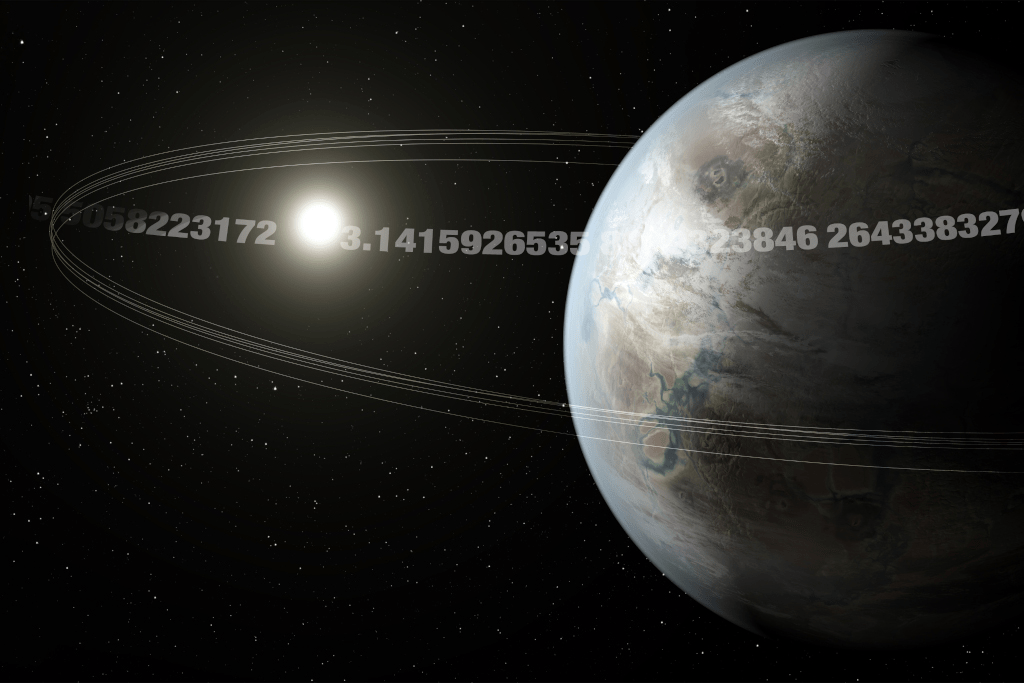
A Year for K2-315b
Artist’s Illustration Credit: NASA Ames/JPL-Caltech/T. Pyle, Christine Daniloff, MIT
Explanation: Want to visit a planet that has 3.14 days in a year? Then plan a trip to K2-315b, an earth-sized planet orbiting around a cool, red, M dwarf star about once every 3.14 days. The exoplanet’s discovery, based on publicly available data from the planet-hunting Kepler Space Telescope’s extended K2 mission, was announced in 2020. K2-315b’s measured orbital period in days is nearly equal to the extremely popular irrational number Pi. That puts the exoplanet so close to its parent star that its surface is likely very warm, baking-hot in fact. And this Pi planet is over 185 light-years away. So instead of trying to arrange for an interstellar vacation to K2-315b, there may be easier and more comfortable ways for you to celebrate Pi day on planet Earth.
Tomorrow’s picture: equinox at the pyramid
 Scottie's Playtime